
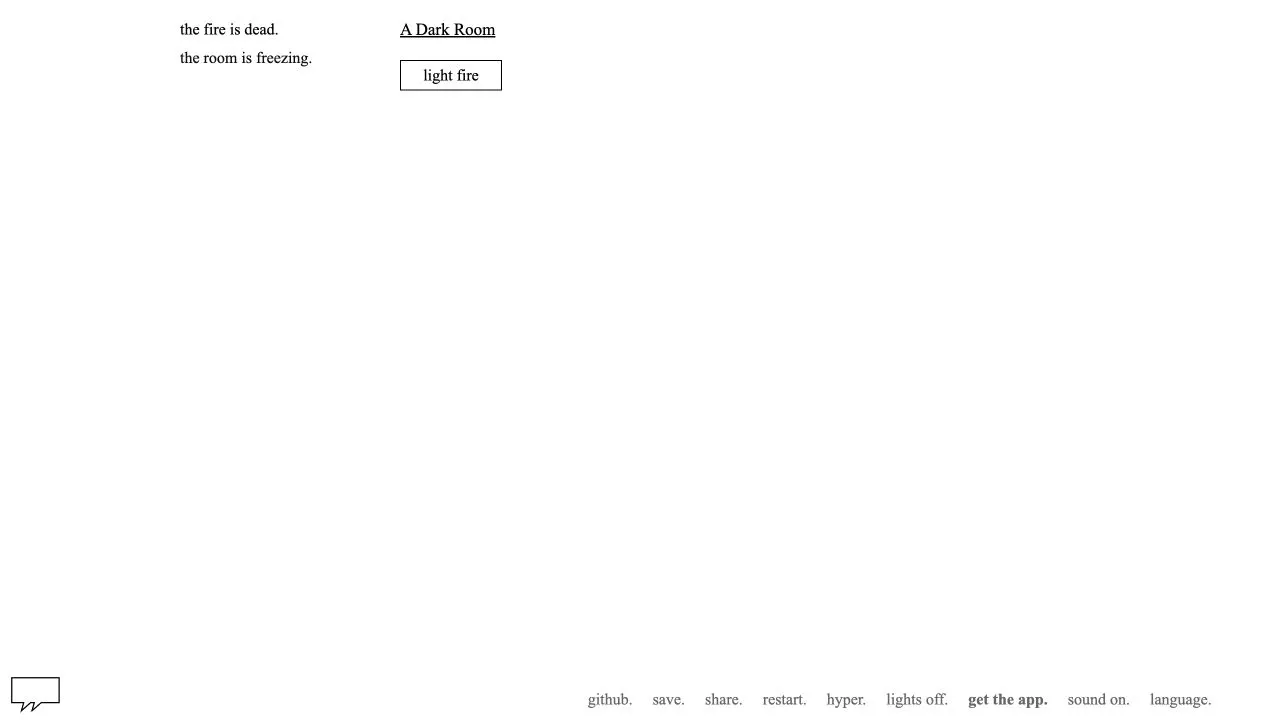
A Dark Room is a minimalist text adventure from Doublespeak Games. The studio’s GitHub organization describes itself as a small independent studio focused on open-source, browser-based experiences, and identifies A Dark Room as one of its public projects. The game is hosted at adarkroom.doublespeakgames.com.
A Dark Room: the first playable actions
- Open the official host. The checked session began with light fire, plus notifications that the fire was dead and the room was freezing.
- Select light fire. The room title changed to A Firelit Room, and the action became stoke fire.
- Use stoke fire when available, then read the notifications as the opening develops. A temporarily unavailable action is not the same as a failed page load; avoid repeatedly refreshing while waiting for an action to become available.
- When A Silent Forest appears beside the room title, select it to open that location.
- Select gather wood when available, then check the stores panel. In the October 12, 2026 check, the displayed wood count changed from 3 to 13 after this action. That is an opening-session observation rather than a promise of a fixed yield throughout the game.
Switch between the room and forest using their named tabs. The opening does not require a 3D scene, an installer or keyboard movement: its text controls are the game interface. An empty-looking area beneath them is not, by itself, a loading failure.

Opening controls checked October 12, 2026. The resource count in this later screenshot can differ from the first gathering observation as play continues.
A checked reload and what it establishes
After reaching the forest and gathering wood, reloading the same browser restored A Firelit Room, the A Silent Forest tab and a wood count of 13. A saved. label was visible. This confirms that opening progress resumed in this browser; it does not establish cloud synchronization, a transferable mobile-app save or later-story recovery.
For a return visit, use the same browser profile and host address. Keep the existing tab or save information available before trying another profile. Avoid restart when you intend to continue a run: starting over is a different action from reopening the host. Do not clear the site’s data as the first response to a slow or unavailable control.
This opening check keeps later story outcomes, resource recipes and hidden progression out of the guide. The useful distinction is between a working text interface, an action that is waiting, and a page that never exposes its controls.
Browser state and progress
The project is an externally hosted web game. Before clearing site data or using a private browsing window, consider that a browser game can keep settings or progress in the browser. The source code and host are public, but that does not mean this guide can restore a lost save or diagnose the host’s internal state.
If you want to compare a clean load, first note anything visible that you may want to keep. Then use a second profile or private window only if you understand it may not contain your usual site data. That makes it easier to distinguish a local browser-state issue from a game or network issue.
If the text interface does not respond
Wait until the page has finished loading, then reload once. If an option remains unresponsive, make sure no browser dialog, selection, or extension overlay is covering the page. A current browser with the game’s scripts allowed is the baseline; do not turn off security features merely to make an external page work.
Record the exact message, the page URL, and your browser version if you report an issue to the project. The browser game troubleshooting guide has general advice on cached data and browser checks.
For a visual board game with a simple browser entry, see 2048 in a browser. The game directory records what each external host currently asks for.
Sources
Check the sources below for current product details, requirements and terms.