
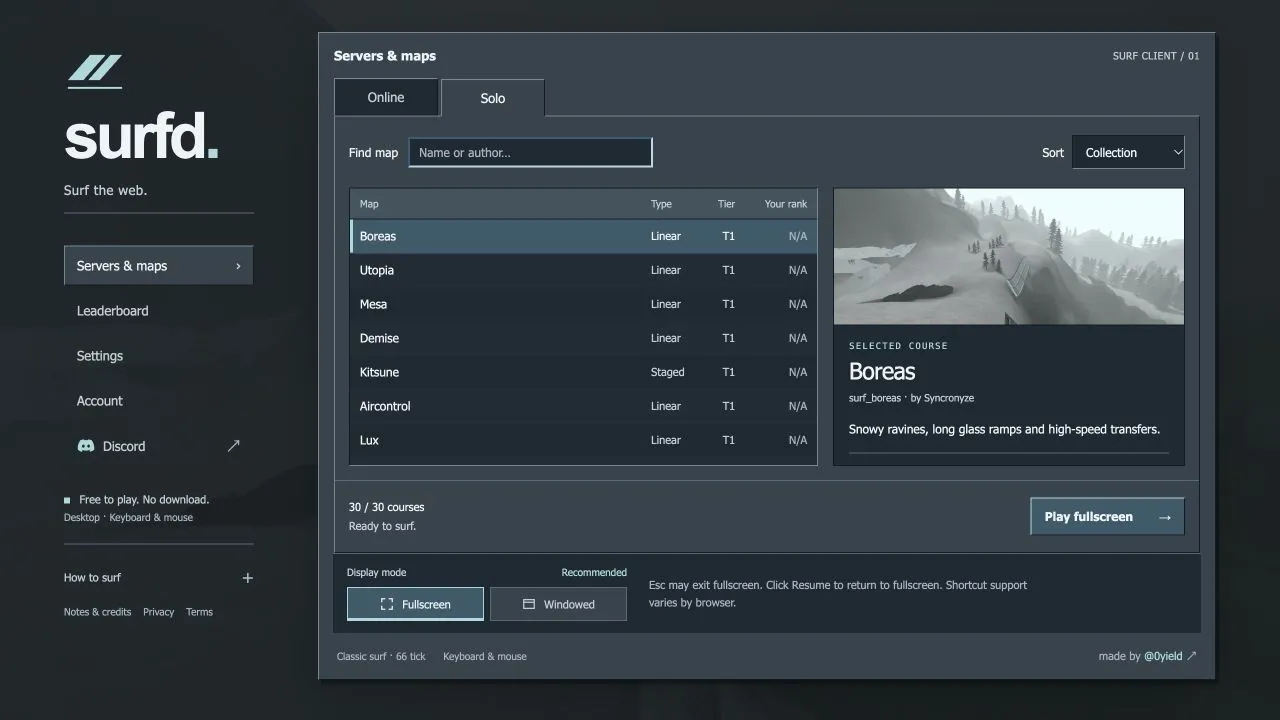
Surfd is a desktop browser surf project that presents itself as free to play with no download and recommends keyboard and mouse. The checked entry showed a course selector with 30 courses, guest play, and an offline-ready solo screen. It also showed the current map surf_boreas, credited to Syncronyze, as a linear Tier 1 route with two checkpoints. This guide describes that observed host interface, not a completed run or a verified leaderboard result.
Choose solo before diagnosing online status
At the check, the host offered Solo, Online EU, Online NA, and Offline. Both online choices and Connect were disabled, with a message that online was not connected while solo was ready. That state should be read as a snapshot of the host at the time of the visit, not a claim that online play is permanently unavailable.
For a first attempt, select a course in Solo or Offline and let the map load. The observed Solo Boreas flow changed from Loading the map… to Ready to surf, then exposed an enabled Play fullscreen button. Wait for that ready state before switching modes or judging controls. The visible course panel and ready control identify a route and launch stage; they do not prove that a timed run has been completed.
Observed Boreas route and controls
The host’s Boreas panel displayed Start, CP 1, CP 2, and Finish. Its tutorial text says green marks the start and gold marks the finish. These are the host’s route labels, not a record of a successful traversal.
| Action | Host-published control |
|---|---|
| Move and strafe | W, A, S, D |
| Jump | Space or mouse-wheel down |
| Duck | Shift |
| Look | Mouse |
| Restart | R |
| Open menu | Esc |
Surfd’s basic advice for a ramp is to release W, hold the strafe key toward the ramp face, and use gentle mouse movement to shape a line. Start with those displayed controls, then change one sensitivity or binding setting at a time. The page also presents auto-bunnyhop, practice options, key bindings, mouse settings, and diagnostics; their presence does not establish a preferred competitive configuration.
First-session checklist
- Open
surfd.neton a desktop browser with keyboard and mouse. - Select one course; Boreas is the displayed Tier 1, two-checkpoint example.
- Use Solo or Offline if the online region buttons are unavailable.
- Wait for Ready to surf, then use Play fullscreen if that is the current available control.
- Click the game area when ready so the page can capture mouse input.
- Use R to restart a run and Esc to return to the menu if those controls are active.
Do not infer a particular frame rate, physics result, personal best, or global ranking from the route card. The host can show timing, speed, sync, and performance fields before a full map run is available, so visible values alone do not validate a session.
When a map keeps loading
Keep the page in the foreground, reload once only after a clear failure, and compare the result in a private window or another current desktop browser. A different outcome may narrow the issue to site data, cached resources, an extension, or browser settings. It does not prove one cause without a controlled follow-up.
If you need to change graphics, mouse, or gameplay options, note the original value first and alter one field before retrying the same course. Browser storage can retain preferences or local times. Look for a host-provided export before clearing site data, and use the browser-game troubleshooting guide for focused browser checks.
Is Surfd a download?
The checked host describes it as free to play with no download. It is still a browser project whose map resources must load.
Can I connect to EU or NA right now?
Those controls were disabled during the October 14 observation. Recheck the host rather than relying on that temporary state.
Is Boreas the only course?
No. The observed selector displayed 30 courses; Boreas is the detailed route shown in this guide.
Sources
Check the sources below for current product details, requirements and terms.