
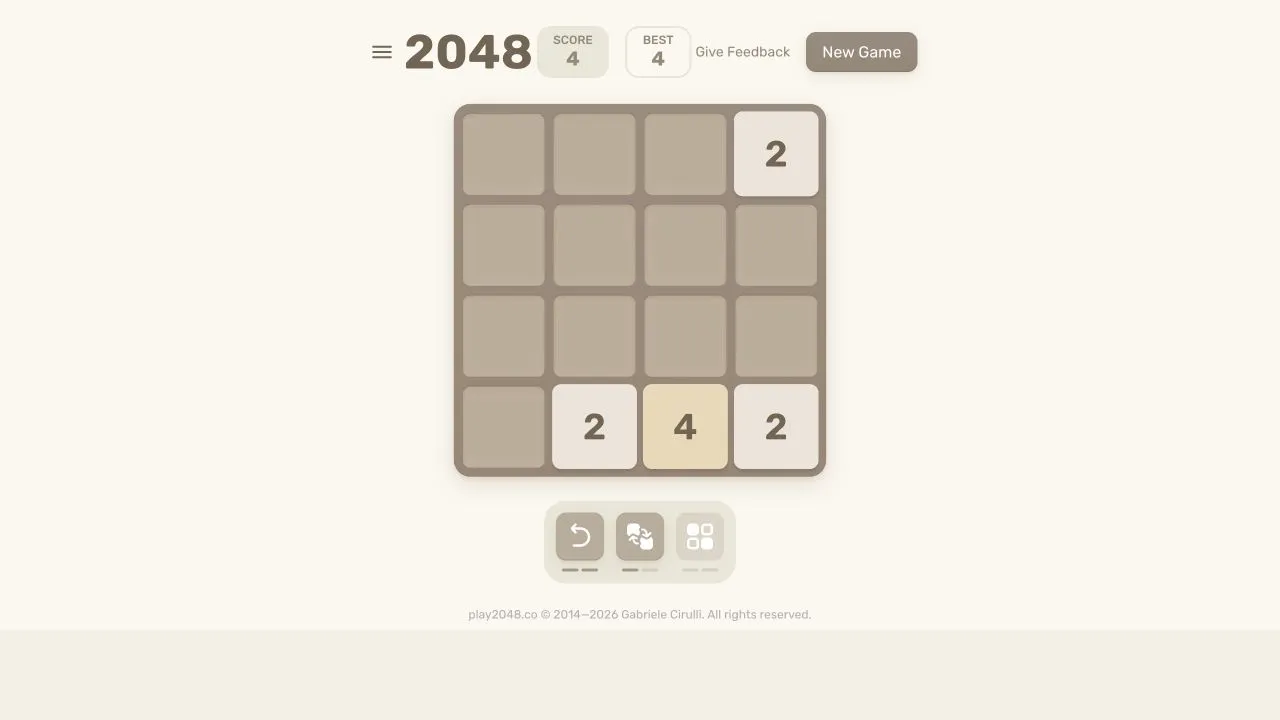
2048 is a tile puzzle that runs from play2048.co. The host’s fallback page says that JavaScript must be enabled to play. In the current browser check, the game first presented a welcome tutorial with a close control; after dismissing that overlay, the board accepted arrow-key input. Those observations describe the entry flow checked on October 10, 2026, and may change when the host updates its interface.
Open a playable board
- Open the host in a browser with JavaScript enabled.
- If the welcome tutorial is covering the board, use its visible close control when you are ready to play.
- Click or tap the game area so the board has focus.
- Use the arrow keys to make the first move on a keyboard-equipped device.
The browser check confirmed that an arrow key moved the board after the tutorial was dismissed. It did not evaluate every control method, score system, or completion state. Use the host’s visible instructions if they differ from this short entry sequence.
The puzzle rule is simple: tiles with the same number merge when a move brings them together, and the visible goal is a 2048 tile. The host also documents swipe input, so a phone or tablet can use the on-screen gesture if it is available. This is a solo puzzle; it has no shared board or multiplayer setup in the host’s public instructions.
Keep or restart a run deliberately
The host’s privacy policy says it uses browser local storage to retain game state so a game can be resumed. That storage stays in the browser, which means a private window, a different browser profile, cleared site data, or a device change can begin without the same run. Use New Game or Try again only when you intend to replace the current board, and do not clear play2048.co’s site data while you want to keep it.
What to check before troubleshooting
JavaScript is the first requirement. If you see the host’s “Enable JavaScript to play 2048” message, inspect the browser’s JavaScript setting or a script-blocking extension for that site. Do not assume the message means the game has lost your progress; it only means the page did not receive the code it needs to render the board.
If the board appears but arrow keys scroll the page or affect the browser, click the board again and verify that the tab is active. A text field, browser toolbar, or tutorial overlay can receive keyboard input instead. On a device without a physical keyboard, follow the interaction cues currently shown by the host instead of treating keyboard behavior as a guarantee.
If the host does not load
Refresh once after checking your connection. If a second attempt has the same result, compare a current browser with extensions temporarily disabled for the page where appropriate. Avoid repeatedly clearing all browser data: saved site settings or local game state can be stored by a website.
For a persistent issue, record the exact visible message and the browser version before contacting the host. The browser game troubleshooting guide covers general focus, stored-data, and browser-update checks. It does not change settings on an external game host.
For a text-led game, read A Dark Room in a browser. The game directory has the rest of the source-checked collection.
Sources
Check the sources below for current product details, requirements and terms.