
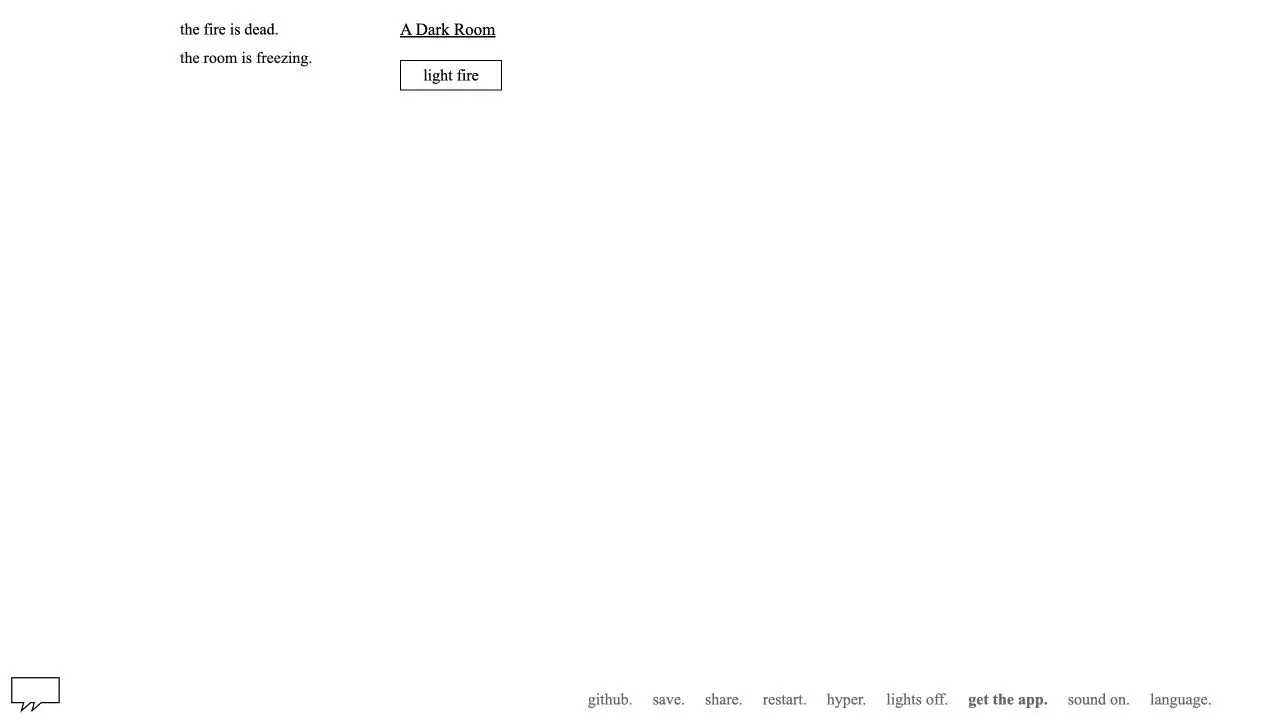
A Dark Room is a minimalist text adventure from Doublespeak Games. The studio’s GitHub organization describes itself as a small independent studio focused on open-source, browser-based experiences, and identifies A Dark Room as one of its public projects. The game is hosted at adarkroom.doublespeakgames.com.
Begin from the browser interface
- Open the game host in a current browser and allow the page to finish loading.
- Read the first visible prompt before selecting an option; this game presents its actions as text rather than as a traditional 3D game menu.
- Continue through the controls currently offered by the page.
- Keep the tab open while you play so that you can recognise whether a change is part of the game flow or a browser reload.
This guide intentionally does not publish story outcomes, hidden progression, resource recipes, or automation instructions. The game develops through the choices presented in its own interface, and those details are better discovered in the game than copied into a generic browser-game page.
Browser state and progress
The project is an externally hosted web game. Before clearing site data or using a private browsing window, consider that a browser game can keep settings or progress in the browser. The source code and host are public, but that does not mean this guide can restore a lost save or diagnose the host’s internal state.
If you want to compare a clean load, first note anything visible that you may want to keep. Then use a second profile or private window only if you understand it may not contain your usual site data. That makes it easier to distinguish a local browser-state issue from a game or network issue.
If the text interface does not respond
Wait until the page has finished loading, then reload once. If an option remains unresponsive, make sure no browser dialog, selection, or extension overlay is covering the page. A current browser with the game’s scripts allowed is the baseline; do not turn off security features merely to make an external page work.
Record the exact message, the page URL, and your browser version if you report an issue to the project. The browser game troubleshooting guide has general advice on cached data and browser checks.
For a visual board game with a simple browser entry, see 2048 in a browser. The game directory records what each external host currently asks for.
Sources
Check the sources below for current product details, requirements and terms.