
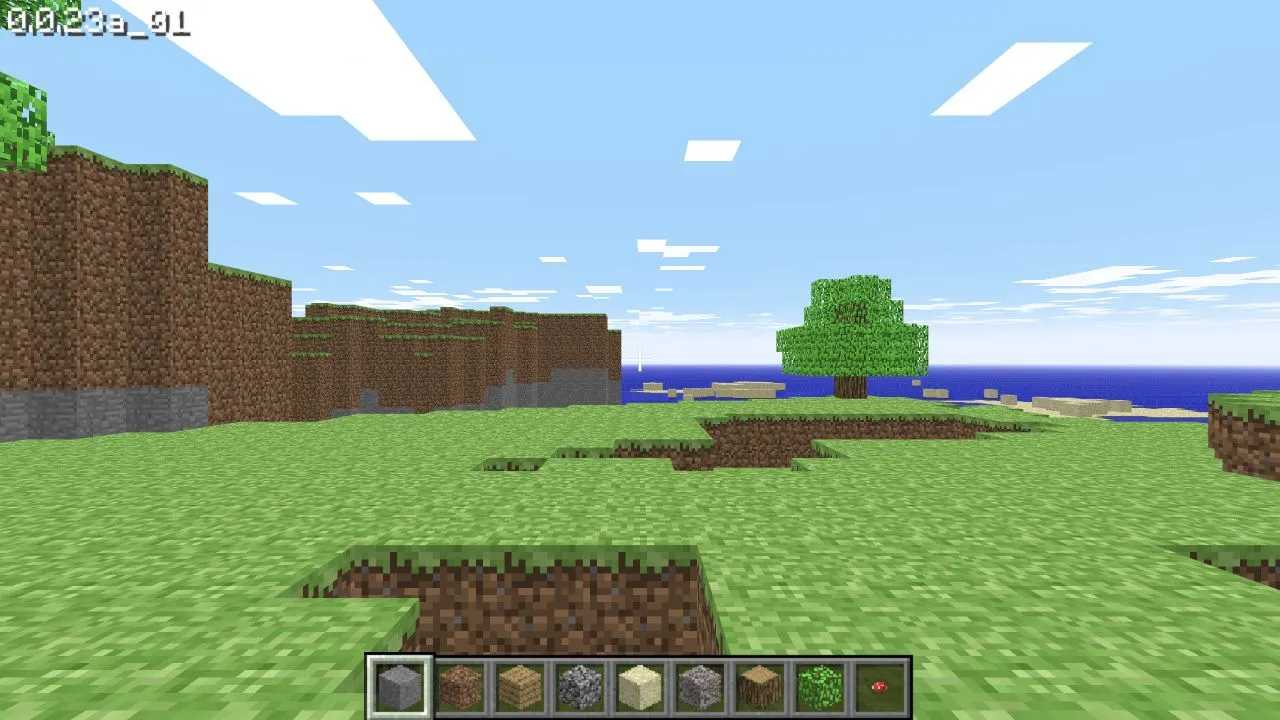
Minecraft Classic is available through the Minecraft Classic browser host. Its compatibility screen states two important conditions before play: the site requires a keyboard, and the browser needs WebGL or WebRTC support. Check those conditions first, especially when opening the page from a phone, tablet, embedded browser, or locked-down work device.
Check the browser before you start
- Use a device with a physical keyboard available to the browser.
- Open the Minecraft Classic host directly, rather than inside another app’s embedded web view.
- Let its compatibility check run. If the site reports missing WebGL or WebRTC support, use another current browser or device that provides those features.
- Continue only after the game presents its own start flow.
The compatibility messages are useful because they identify browser capability before you spend time troubleshooting the game itself. A message that a keyboard is required is an access condition, not a prompt to enable an on-screen control scheme. Likewise, a WebGL or WebRTC warning is not something this guide can safely work around by changing protected browser settings.
Keep the game tab ready for input
After the game view opens, keep the tab active while you use the keyboard. If a shortcut affects the browser instead of the game, first check whether the game area has focus. Browser chrome, an address bar, and an inactive tab can all receive keystrokes before the game does.
Use the instructions shown inside the current game session for movement, block actions and any collaboration option. Minecraft’s public compatibility screen establishes the keyboard, WebGL and WebRTC requirements, but it does not publish a stable control chart, save format, or guarantee that a session link will remain available. If the start flow offers a link or an invitation feature, copy it from that live session and let every participant pass the same compatibility check before treating it as a multiplayer plan.
Minecraft Classic is a historical browser experience, not a guide to newer Minecraft editions. This page does not document modern installation, account services, editions, world transfer, or performance. Treat a world as session-specific unless the current host explicitly offers an export or saved-world action; do not clear the site’s data while you need it.
If the compatibility screen will not clear
Update the browser through its normal channel, then retry once. If the page still says WebGL or WebRTC is unavailable, test a supported browser on the same device before assuming the game service is down. Managed devices can block browser capabilities by policy; follow the device owner’s rules rather than disabling security controls.
For a blank game canvas, check that hardware acceleration and WebGL are available in the browser settings. Save any work you need before clearing browser data, because site data may contain session or local settings. The browser game troubleshooting guide has the broader checks.
For another game that can start from a browser tab without an original game file, see 2048. The game directory lists the collection’s stated access requirements, while browser game troubleshooting covers canvas and focus checks shared by both projects.
Sources
Check the sources below for current product details, requirements and terms.