
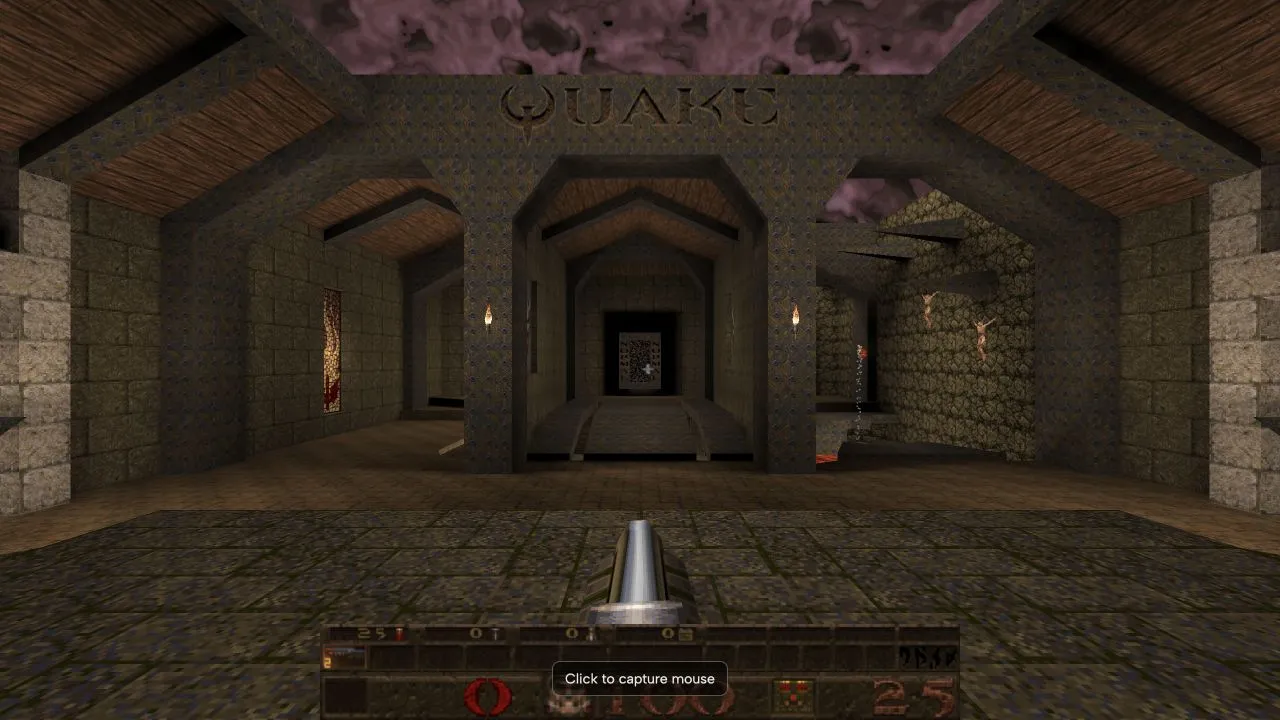
NetQuake runs Quake 1 in a browser. The project offers Episode 1 free; unlocking all four episodes requires your own pak1.pak from a copy of Quake. This is a game project, separate from the Windows software in our Radiant Optimizer download guide.
Free episode or full game?
| Path | What you need | Where to start |
|---|---|---|
| Free Episode 1 | A browser and an internet connection | Play Now on NetQuake |
| Full game | Your own pak1.pak | The project’s owned-game file option |
The project says the full-game file is verified locally. Use the site’s current file instructions; our guide does not host or receive your Quake files.
Start a single-player game
- Select Play Now on the project homepage and allow its resources to load.
- If an animated demonstration appears, press Escape to open the main menu. A running demo is different from a new game.
- Select Single Player, then New Game. The starting room lets you choose the difficulty and episode.
- Click the game area when you want mouse capture. Press Escape to release the pointer or return to the menu.
The October 10, 2026 desktop browser check reached the new-game starting room through this sequence. It checks the free startup path, rather than multiplayer, full-game files or measured performance.
Keep controls predictable
Use a keyboard and mouse as the starting setup. Check the game’s Options menu for bindings before changing browser shortcuts or assuming a controller is supported. If input stops after switching tabs, click back inside the game area. Browser focus and pointer capture are separate from the game’s sensitivity settings.
Select Multiplayer on the project homepage if that is your goal. NetQuake describes that route as joining community servers and playing custom maps, but a multiplayer button is not evidence that a suitable public server, a particular map, or a friend’s session is available at the moment. Open the live server or room choice first, then confirm its name, rules and any asset prompt before joining. Consult its Setup and FAQ pages for project-specific configuration.
The host documents local verification of an uploaded pak1.pak; it does not mean that the guide receives the file. It also does not make a promise about campaign saves. If the game exposes a save/load action, use it before changing browsers or clearing NetQuake’s site data, and keep the same browser profile for the return visit.
If the page does not work as expected
Reload once after checking your connection. If that changes nothing, open the page in a current supported browser and compare the result. A private window can help identify an extension or stored-site-data conflict, provided you understand that it may start without saved browser state.
For a blank, frozen, or visually incomplete game area, check whether hardware acceleration and WebGL are available in the browser’s settings. Follow your organization’s device policies and do not disable security warnings or browser protections to make a game run. Update the browser through its normal update channel if it is out of date.
If you decide to clear site data, export or note anything important first: clearing website data can remove saved settings or progress for that site. Use the browser’s site-data controls for the exact site rather than clearing unrelated browsing data.
For a broader checklist, read browser-games troubleshooting. Browse the games list for other projects, and use Diablo in a browser when you want a guide for a project with a separate data-file requirement and a documented shareware route.
Sources
Check the sources below for current product details, requirements and terms.