
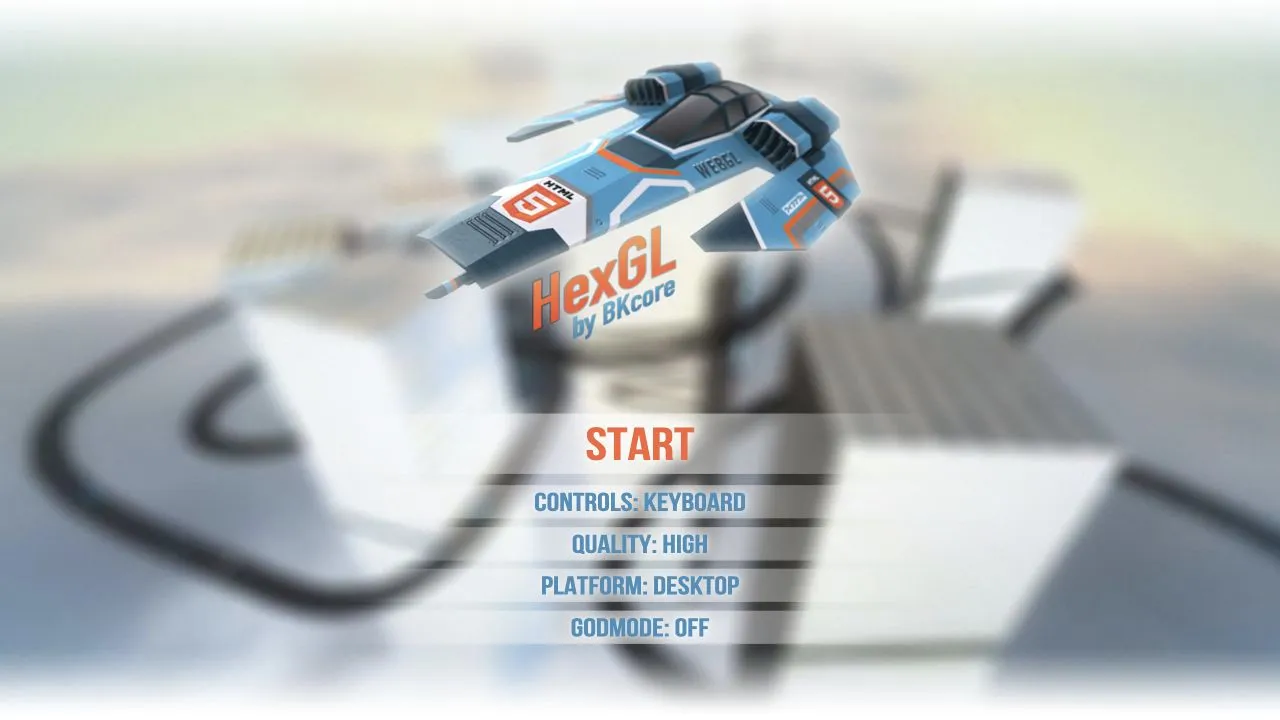
HexGL is a futuristic HTML5 racing game from BKcore. The project’s GitHub profile identifies HexGL as its source code, and the browser host exposes a start screen with options including Quality, Platform, Godmode, and a Click/Touch to continue prompt. The page currently labels the platform option as Desktop.
Start from the host’s current screen
- Open the HexGL play page in a current browser and wait for its interface to render.
- Review the options that are actually visible, including the current Quality and Platform values.
- Use the host’s Click/Touch to continue prompt when you are ready.
- Follow the next on-screen instruction instead of assuming an older control list still applies.
The host’s opening labels are useful setup information, but they are not a performance benchmark. A “High” quality label, for example, names the host’s current option; it does not prove a specific framerate or that another computer will run the same way. This site does not make a FPS claim for HexGL without repeatable measurements and stated test conditions.
Desktop and browser requirements
The current host calls out Desktop, so begin on a desktop-style browser if you want to follow its own opening setup. Browser graphics games can depend on graphics acceleration, WebGL availability, extensions, and available memory. If the page shows a compatibility message, read it before changing anything.
Keep the game tab active as it loads. If clicking does not continue, first check that a browser dialog or overlay is not intercepting the click. If the game surface has focus but input still does not work, reload once and compare a current browser. The external project controls its own settings; this guide does not modify the game or send configuration to it.
If loading stalls or the display is incomplete
Give the first load a little time, then retry once rather than repeatedly refreshing. A blank or broken graphics surface can indicate browser capability, a content-blocking extension, an interrupted asset load, or a temporary host problem. Note the visible message and browser version if you need to ask the project for help.
Use the browser game troubleshooting guide for safe checks involving a browser update, hardware acceleration, and site data. Do not disable security protections or accept unexpected downloads to make a browser game run.
For another project whose browser compatibility screen mentions graphics support, see Minecraft Classic. The game directory groups every source-checked external host by category.
Sources
Check the sources below for current product details, requirements and terms.