
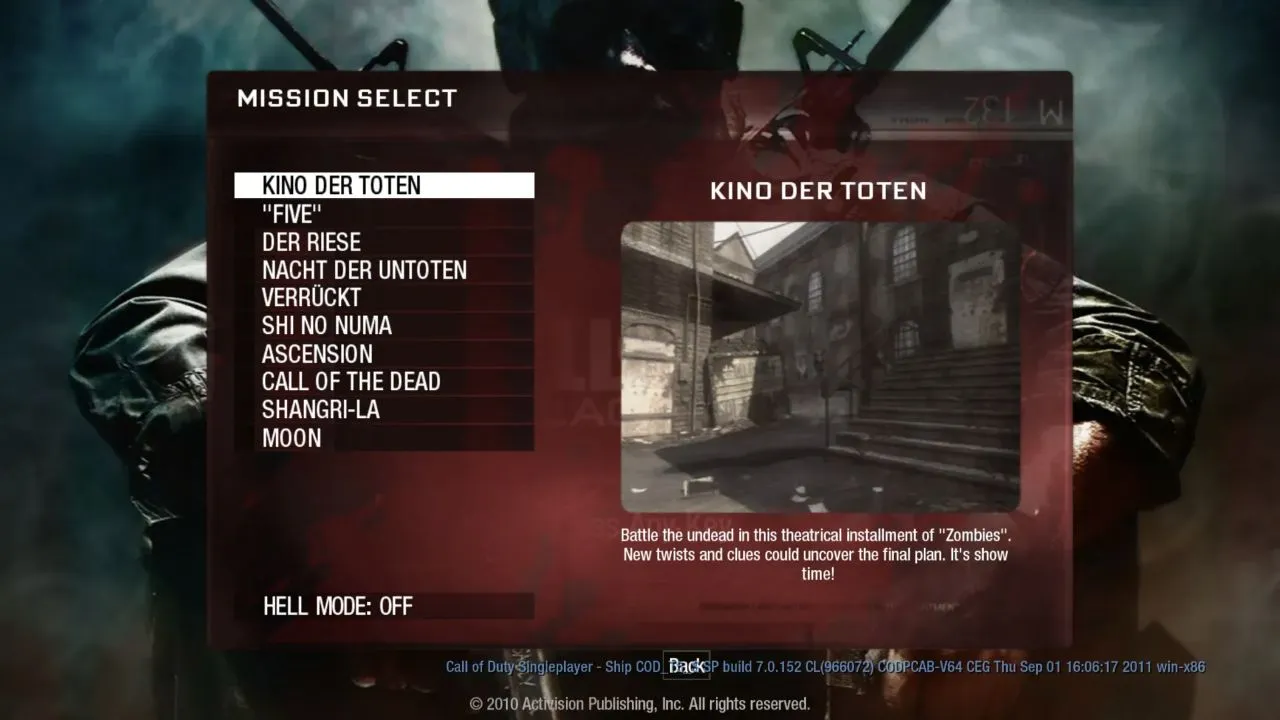
Looking for Black Ops 1 Zombies, BO1 Zombies, or COD Zombies in a browser? The BO1Z project opens with a map selector. Choose a named map before expecting a playable scene: the selector and each map’s download screen are separate stages. This guide covers the browser project at vel.gg, which is separate from the Windows utility covered by our Radiant Optimizer download guide.
Maps on the project selector
The October 10, 2026 selector lists:
- Kino der Toten and “Five”
- Der Riese and Nacht der Untoten
- Verrückt and Shi No Numa
- Ascension and Call of the Dead
- Shangri-La and Moon
Each selector entry opens its own map address. That makes the selected map name and URL useful when a launch fails: a problem on one map page does not necessarily mean that the selector or every other map is unavailable.
Start with a normal session
- Leave Hell mode off for a first session. The selector describes that option as starting on round 100 with up to 300 zombies and no perk machines.
- Select a map, such as Kino der Toten. Its page has a separate loading view rather than opening directly into a scene.
- Keep the same tab open while the map’s status and percentage continue to change. A repeated refresh starts the loading sequence again; it does not establish that the map is broken.
- Wait for the loading view to finish, then select Click to Start. Read the browser prompt and any instruction displayed by the map page before continuing.
The Kino entry completed downloading and reached Click to Start in the October 10 desktop browser check. The embedded browser then reported that mouse or sound access was declined. Startup time depends on the project host, connection and device.
That check did not establish an account requirement, ownership requirement, saved-progress behavior, online matchmaking, or a completed match. The directory therefore labels both account and original-game-file requirements “Confirm with host.” Read the selected map page before sharing a link or assuming that another player can join the same session.
Options shown on the Kino loading view
Kino’s Options panel showed mouse sensitivity at 5.0, master volume at 50%, and a fullscreen checkbox on October 10. The two sliders were disabled before launch; the fullscreen checkbox was available, and the panel said to reload to change settings. Map features may vary.
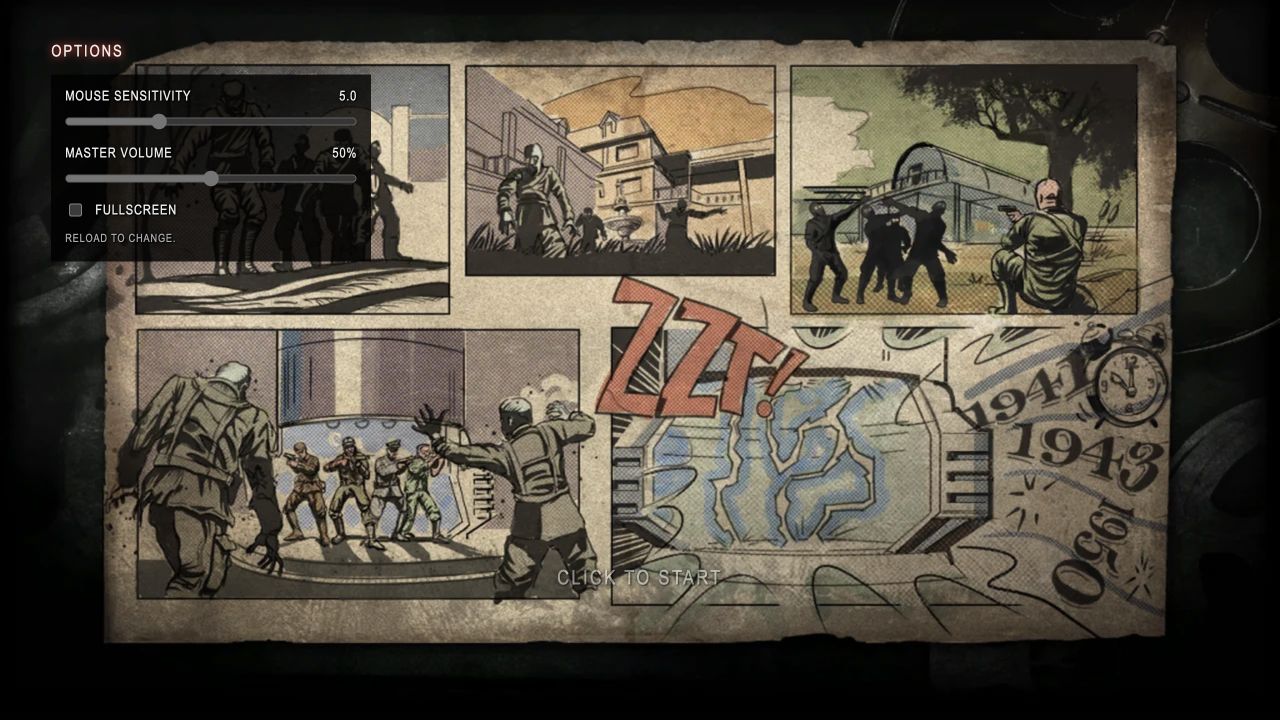
Kino der Toten startup screen with Options open, October 10, 2026.
Mouse or sound access declined
If this message appears after Click to Start, open the project in a regular desktop browser tab, click the button yourself and review the browser’s site permissions. If a prompt was dismissed, change the setting through the browser’s normal address-bar or site-settings control, reload the same map page, and return to Click to Start. Embedded browser environments can handle pointer capture differently. Do not bypass security warnings or managed-device restrictions. Successful downloading and permission access are separate checks.
Menu, download or game scene?
Record the stage when reporting a problem. If the map selector works but a selected map does not load, include that map’s URL rather than only the selector address. A loading view that stops advancing is a different symptom from a completed scene that ignores keyboard input.
Use this short sequence before changing settings:
- Return to the selector and open the same map once more in a regular desktop browser tab.
- If the selector loads but that map stalls again, compare one other map without changing several browser settings at once.
- If a map reaches Click to Start but input does not respond, check page focus and site permissions before treating it as a download problem.
For input problems after loading, click inside the game area to return focus. Read any pointer-capture prompt before accepting it, and use Escape to release capture when needed.
Diagnose one condition at a time
Begin with a small check: does the page load, can the game area receive focus, and do its visible controls respond? Keep notes on the browser and exact symptom. If an extension changes page scripts, keyboard shortcuts, privacy behavior, or layout, compare the result in a private window or another current browser. Use that comparison to isolate a cause; do not weaken browser protections or bypass a warning.
If graphics fail to appear or the page renders incompletely, inspect whether the browser has WebGL and hardware acceleration enabled. Follow the browser’s normal settings flow and any organization policy for a managed device. If a setting is unavailable, ask the device administrator rather than attempting to work around restrictions.
Protect stored browser data
Site data can include preferences or locally stored progress. Before clearing a site’s data, write down or export anything the project makes available, because the browser’s clear-data action can delete those records. Use per-site data controls when possible, then reopen the page and test again with the same browser setup.
For a connection or loading problem, note the page URL, selected map, browser version, operating system, and the message or visible state. For an input issue, also note whether Click to Start was visible and whether a permission request was accepted, dismissed, or unavailable. Those details make a report more useful than a general claim that the game “does not work.”
If the map itself offers a save, lobby, invite, or profile control after launch, use the wording and conditions shown there. The October 10 observation reached only the pre-launch permission stage, so it is not evidence that those features are present or work for every map.
Read browser-games troubleshooting for the full recovery sequence. The games list links to other browser projects, including Diablo in a browser, whose documented game-data choices require a different setup.
Sources
Check the sources below for current product details, requirements and terms.