
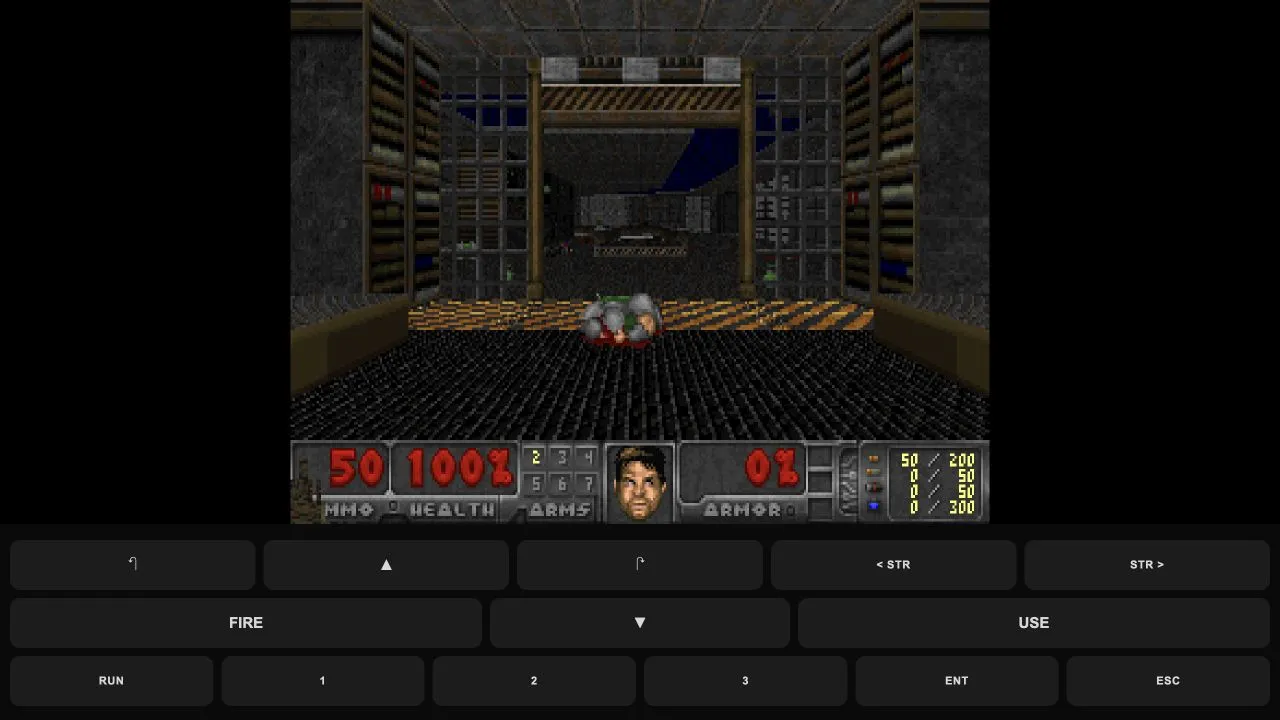
This browser project runs Freedoom: Phase 1 using a Doom-compatible engine. Freedoom provides its own levels, artwork and audio. This is a distinct game, not the original Doom campaign or a Doom shareware download. The listed host includes Freedoom data, so you do not need to provide an original Doom WAD file.
Start a new game
- Open the host and wait for its loading log to finish.
- Press TAP TO START. The title screen and on-screen controls appear.
- Press Enter or the on-screen ENT control to bring up the menu.
- Choose New Game, select an episode, then choose a skill level.
- Keep the game focused and move into the opening level.
The October 11, 2026 desktop browser check followed this sequence and tested keyboard movement in the opening level. It establishes startup and initial input, rather than a full campaign or every device configuration.
Keyboard and touch controls
| Action | Keyboard / on-screen control |
|---|---|
| Move and turn | Arrow keys / directional controls |
| Fire | Ctrl / FIRE |
| Open doors or activate | Space / USE |
| Strafe | Comma and period / STR buttons |
| Change weapon | Number keys / numbered buttons |
| Confirm menu choice | Enter / ENT |
| Open or leave a menu | Escape / ESC |
Click inside the game before testing keys. If arrows scroll the webpage instead, the game may not have focus. The host provides touch controls below the canvas; their presence does not establish that every phone browser will run it smoothly. Choose a screen orientation that lets you see both the game and controls.
Loading and sound problems
The first visit downloads the engine and game data. Let the loading log advance before refreshing; repeated reloads can restart the same work. If loading stops, retry once on a stable connection and compare in another current browser. If only input fails, refocus the game before treating the engine as broken.
Start through the visible button rather than expecting audio to begin automatically. When sound is missing, check the tab’s mute state and device volume. For general graphics or focus problems, use the browser-game troubleshooting guide.
Saving and multiplayer
The game menu exposes Save Game and Load Game. Before relying on a longer session, make a short save and check that it loads in the same browser. This guide does not establish persistence after clearing site data, cross-device synchronization or cloud saves. Do not clear the host’s browser data while relying on a saved run.
The startup check used single player. There is no verified public multiplayer join flow in this guide; the engine name is not evidence of a working lobby. For another classic shooter with its own host requirements, see Quake, or compare entries in the shooter collection.
Sources
Check the sources below for current product details, requirements and terms.