
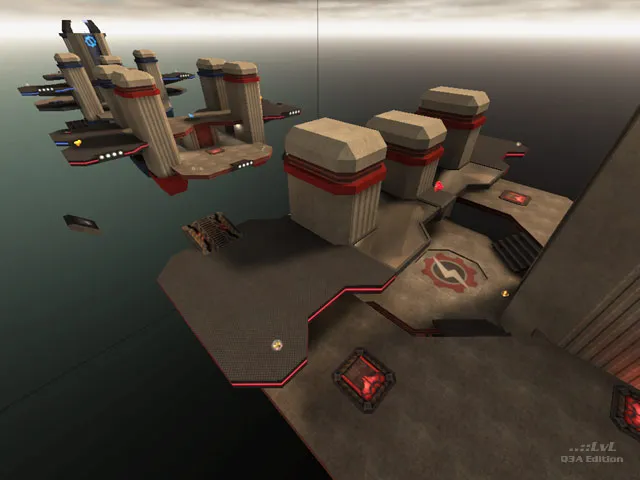
The Quake III page at q3.pieter.com is an unofficial, non-commercial preservation project. Its opening screen has a player-name field and a Play button. The page credits Q3JS, says it has mobile and gamepad support, and says it is not affiliated with id Software. The host also displays the current map and a live player table, which can change at any time.
Open the Quake III browser project ↗
Begin a session
- Open the host page and wait for the player-name input and Play button.
- Enter the name you want the project to display.
- Select Play once, then allow the game resources to load.
- Follow any current project prompt after the game view opens.
The page displays the current map and an online-player count. Those live details do not establish a fixed matchmaking queue, a permanent map rotation, or an available seat at every moment. Read the map and player information shown by the host at the time you visit instead of relying on a screenshot or old count.
Device and control notes
The project advertises mobile and gamepad support. Those are host-published capabilities, not a guarantee that every device, browser, controller, or browser permission will behave the same way. Start with the input method you normally use, and consult the host’s own visible settings or prompts before changing bindings.
Avoid using browser zoom, navigation gestures, or other browser shortcuts as a substitute for game controls while the game has focus. If a click does not reach the game, click the game surface once, then try again. If a browser asks for a permission, read what it is requesting and decide whether it is appropriate for that external site.
If the game takes a while to load
The entry route can load sizeable game resources. Keep the tab open and wait for a clear error before assuming it has failed. A reload is a reasonable first retry, but rapid repeated reloads can start the loading sequence again. If another browser works, compare extensions, privacy settings, and available browser features before altering anything system-wide.
Do not bypass browser warnings or security protections to force a result. Capture the exact message, the browser version, and the page URL if you need to report a persistent issue to the project. The general browser game troubleshooting guide covers focus, cached site data, and WebGL checks.
For the related project with a different host and engine credit, read Quake II in a browser. Browse the game directory for the collection’s other externally hosted games.
Sources
Check the sources below for current product details, requirements and terms.